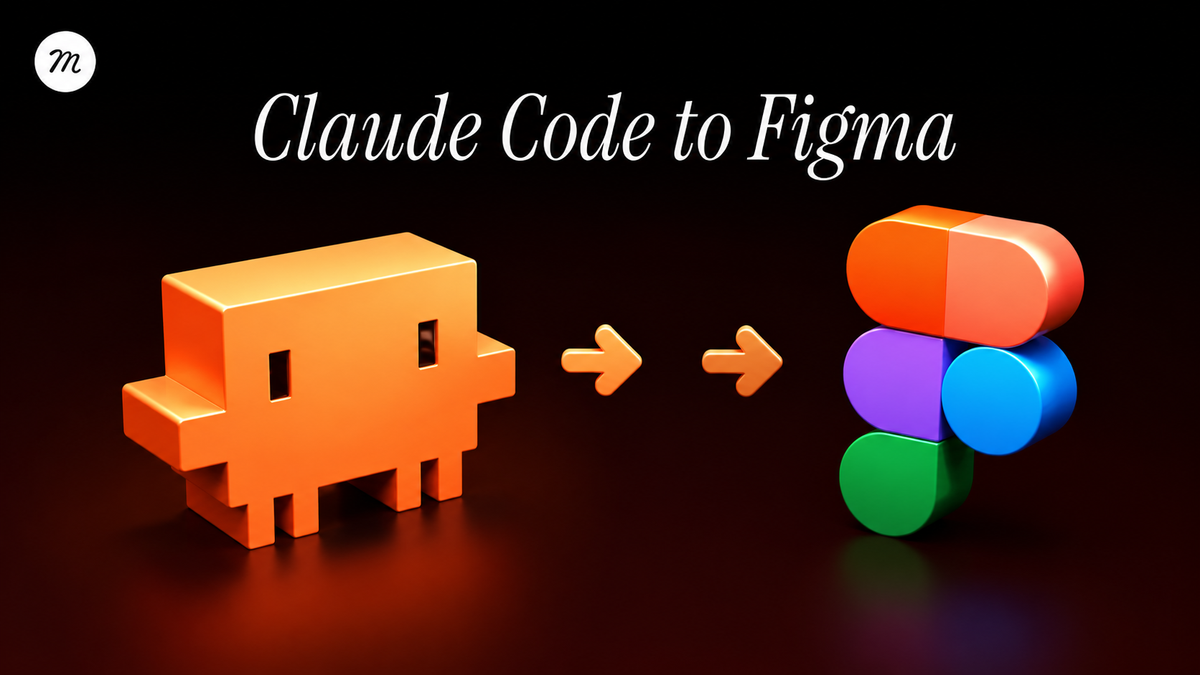
From Claude Code to Figma: A New Way to Review AI-Built Interfaces
AI coding tools can now turn an idea into a working interface within minutes. But building the interface is only one part of the process. Designers and product teams still need a clear way to review, compare and improve what has been created.
Figma’s Code to Canvas workflow connects Claude Code with the Figma canvas, allowing a working interface to be brought back into the design process as an editable frame rather than a flat screenshot.
Why this matters
The traditional workflow usually moves from design to development. A designer creates the interface in Figma, then a developer translates it into code.
Code to Canvas introduces the opposite direction:
Working interface → Figma canvas → design review
This makes it easier for designers, developers and product teams to evaluate AI-generated interfaces together before deciding what should move forward.
How the workflow works
The process is relatively simple:
Build or update an interface using Claude Code.
Run the interface in a browser.
Capture the live page through Figma.
Bring it into the canvas as an editable frame.
Review, annotate and compare different versions with the team.
Multiple screens can also be placed next to each other, making it easier to review complete journeys such as onboarding, checkout or account settings.
Connecting Claude Code and Figma
The connection uses Figma’s MCP server. MCP allows Claude Code to understand information from a selected Figma frame, including its structure, layout and design properties.
This creates a two-way workflow:
- A Figma design can be referenced when asking Claude to build an interface.
- A working interface created with Claude can be captured and reviewed inside Figma.
Design and development no longer need to operate as completely separate stages.
What designers can do without coding
Once the interface is inside Figma, designers can work in the environment they already know.
They can compare variations, reorganise layouts, leave comments and check whether the result follows the existing design system.
This is especially helpful when AI generates several options quickly. The designer’s role becomes less about producing every variation manually and more about judging, refining and choosing the strongest direction.
A practical way to use it
The workflow works best in three stages.
1. Explore
Start with a clear design direction in Figma and ask Claude to build one focused component or page.
2. Review
Capture the result back into Figma. Compare it with the intended design, annotate problems and involve the rest of the team.
3. Refine
Send the focused feedback back to Claude Code. Make the changes, capture the updated result and review it again.
Keeping each request limited to one component or one group of changes usually produces a result that is easier to evaluate.
Current limitations
The workflow is promising, but it is not completely seamless.
Claude Code still requires some familiarity with the terminal, captures may need to be created one screen at a time, and generated code should always be reviewed before it is merged into a real product.
The Figma desktop application is also required for the MCP connection.
A more collaborative design process
The most interesting part of Code to Canvas is not simply that it moves code into Figma.
It creates a shared space where designers, developers and product teams can review the same working interface, discuss alternatives and make decisions together.
Code is useful for building and testing ideas. The canvas is useful for comparing, discussing and refining them. Connecting the two can make the design-to-development process feel more collaborative and less like a one-way handoff.